You’ve built backlinks, but when you checked your Ahrefs a few days later, your link was nowhere on your dashboard.
Now, before you assume something went wrong, here’s the truth: the backlink isn’t actually missing – Ahrefs just hasn’t caught up to it yet.
Ahrefs finds backlinks by crawling the web with its own bot (AhrefsBot), and that crawl takes time. So, depending on how authoritative and how frequently visited the linking page is, a new backlink can take anywhere from a few days to a few weeks to appear.
Below is a full list of reasons your backlinks don’t show up (each with a fix), and a step by step way to verify any link manually. Let’s diagnose it.
TL;DR:
If your backlinks aren’t showing up in Ahrefs, they’re usually not missing. It’s just that Ahrefs hasn’t crawled them yet. So new backlink typically takes a few days to a few weeks to appear, depending on how authoritative the linking page is.
Other common causes include the linking site may block AhrefsBot in robots. txt, the page is noindexed, the link is added via JavaScript, or a dashboard filter (like “dofollow” or “live” only) is hiding it.
Remember that Ahrefs isn’t Google – so what matters for rankings is whether Google has indexed the link, which you can actually confirm with a quick search for site: domain.com – if the backlink is live, indexed, and under three weeks old.
First, how long should Ahrefs take to find a backlink?
Before you start assuming anything is broken, in most cases, nothing is. A backlink that isn’t showing up yet is almost always a backlink that Ahrefs simply hasn’t crawled yet.
Ahrefs doesn’t have to notify you when someone links to you – its crawler, AhrefsBot, has to revisit the referring page first and discover the link on its own. According to Ahrefs’ own documentation, the short answer to that really is that it can take a few days up to some weeks before they crawl your new backlink.
Community reports tend to land in that same range – often 2 to 4 weeks for an average site, and occasionally longer for links on obscure or rarely-updated pages.
So if your link just went live a few days ago, the honest answer is: you have to wait. You’re inside that normal window.
Why do some backlinks appear faster than others?
Timing isn’t random – as Ahrefs can crawl the web on a priority system, and where your referring pages just sit in that system will determine how quickly your link surfaces. Their documentation points to few factors that can drive it – including:
- Domain Rating (DR) of the linking site – generally, the more popular a website is (i.e. having a higher DR, more quality backlinks), the more likely a domain will be crawled. This is one reason it’s worth prioritizing backlinks from high authority sites, as they get discovered and re-crawled far more reliably.
- URL Rating (UR) of the specific page – Dr gets the domain noticed, but individual pages, as we all know, still matter – so pages with higher UR have higher chances of getting indexed and updated more often, compared to just pages with a low rating. For instance, a backlink that’s buried on a low-UR page on an otherwise strong site can still lag.
- How many pages does the site have? If a site with low DR has a lot of pages, Ahrefs won’t be able to index all of those pages, and re-crawling frequency will take some time (comparatively lower). A high-Dr website with only a handful of pages gets re-crawled far more thoroughly.
Set your expectations before you troubleshoot
Giving you a context of the bigger picture: Ahrefs refreshes its entire backlink database on a rolling basis, and a complete update, so refreshing the info on the whole internet’s backlinks just takes about two months – within which some pages get updated 60 times and others only once.
Your backlinks are getting discovered against that backdrop of constant, priority-weighted crawling.
Be patient. If your backlink is only a few days to a couple of weeks old, the most likely fix is simply to wait and check again. Only once you’re past that normal window, or you have specific reasons to suspect a technical roadblock, is it really worth moving on to some diagnostic steps.
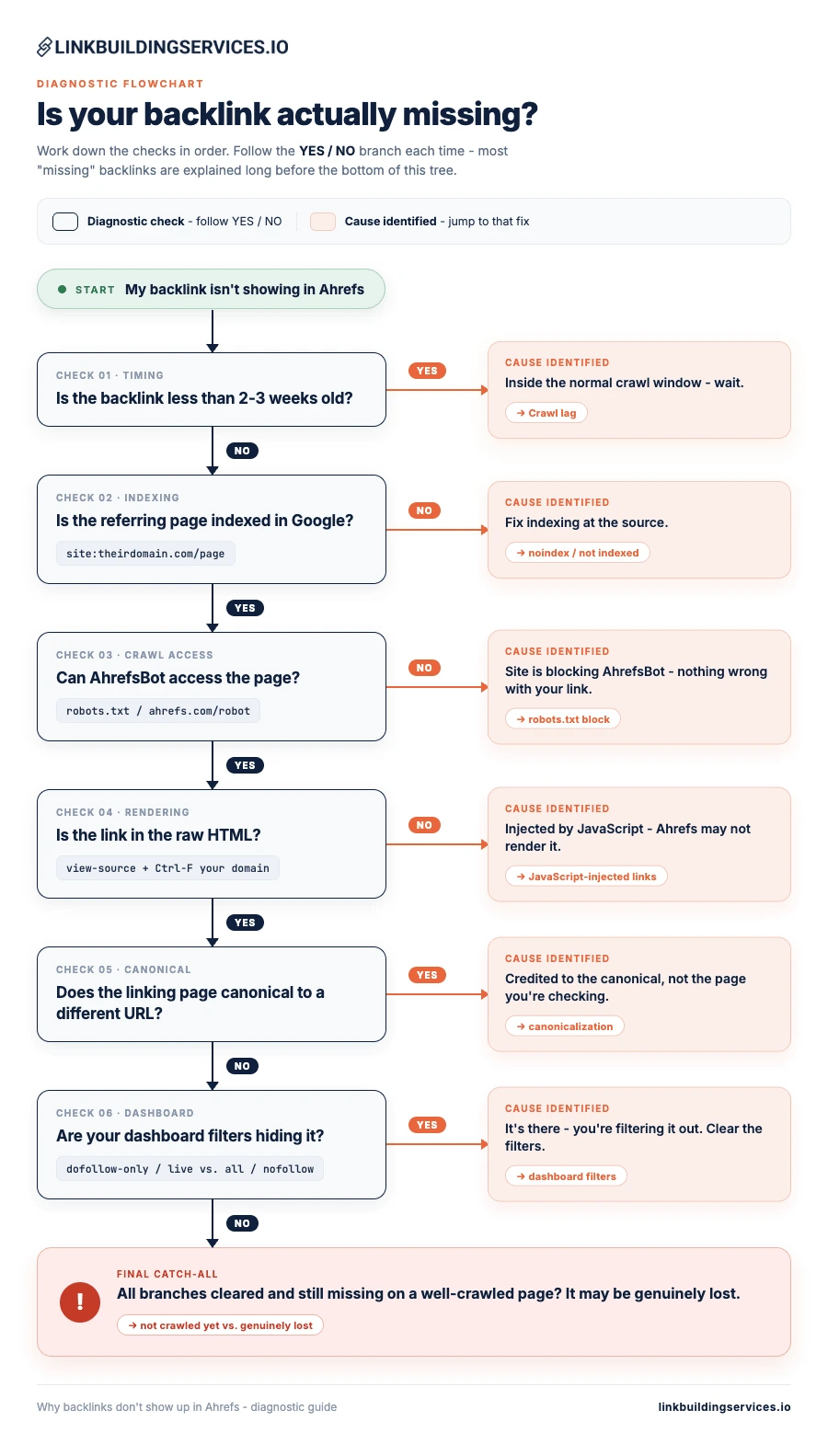
Self-diagnosis Flowchart: Is your backlink actually missing?
Most people troubleshoot in the wrong order, honestly: they simply go straight to robots.txt or start blaming Ahrefs. Here we walk you through checks so you can land on the actual reason in a few steps.
Start at the top and follow the branches. Each endpoint will tell you exactly which fix to jump to below.
Real Causes of Backlinks Not Showing Up in Ahrefs (and how to fix each)
One of these seven reasons is almost certainly responsible – they’re ordered roughly from the most common to least:
1. Crawl lag (the usual suspect)
What it is: The backlink exists and is perfectly fine – AhrefsBot just hasn’t revisited the referring page yet – this is probably the single most common reason a backlink isn’t showing, and it’s the least dangerous, in our experience.
Ahrefs doesn’t get pinged when a link goes live – it re-crawls pages on a priority schedule, and for an average website, that can take anywhere from a few days to several weeks.
How to confirm: You can check the age of backlinks and DR/UR of the pages they’re on – a recent backlink on a low-authority page that just hasn’t been re-crawled is just a crawl lag.
How to fix: Mostly, you just have to wait.
But if the link sits on a page within your own domain – let’s say you linked to a partner’s guest post from your own blog, to give you an example. Here, you can speed things up by triggering a crawl yourself.
Open Ahrefs’ Site Audit tab, select your project, and click New Crawl. You can’t simply force Ahrefs to crawl someone else’s site this way, but you can prompt it to refresh your own. So building that internal link to a new page can really help AhrefsBot discover it faster.
2. The website is blocking AhrefsBot in robots.txt
What it is: The referring website has a robots.txt rule that tells AhrefsBot not to crawl it. So if Ahrefs can’t crawl the page, it can’t see your backlink on it, no matter how legitimate the backlink is. This has nothing to do with your SEO – it’s plain that your link passes value in Google’s eyes.
How to confirm: Use Ahrefs’ own checker at ahrefs.com/robot – paste the URL, and it will tell you whether AhrefsBot is allowed. Or simply open the site’s robots.txt directly and look for a User-agent: AhrefsBot block with a Disallow rule.
Take note that this is for AhrefsBot specifically – so a website can block Ahrefs while still allowing Googlebot and Mozbot, which is exactly why your link can show in Google, but not on Ahrefs.
How to fix: There’s nothing you can fix on your end, and you can’t make another site unblock Ahres.
Confirm if the link is live in raw HTML, and Ahrefs will continue showing that same link if it’s picked up from other referring domains.
3. The referring page is noindex or not indexed by Google
What it is: If Google itself hasn’t indexed the page your link sits on, third-party tools are unlikely to surface it either. A noindex tag, a brand-new page, and even a low-quality page, Google has chosen to ignore all of them in this case.
How to confirm: You can run site:theirdomain.com/exact-page-url in Google. Having no result means that the page isn’t indexed. You can also check the page source for a <meta name=”robots” content=”noindex”> tag.
How to fix: You fix it at the source, not in Ahrefs. If it’s actually your own page, you can remove the noindex tag and request indexing in Google Search Console. If it’s someone else’s page, all you can do is wait and see whether it really gets indexed.
4. A backlink is injected by JavaScript
What it is: The backlink isn’t in the page’s raw HTML – as it’s added client-side by JavaScript after the page loads. So crawlers that don’t fully render JS may never see it.
How to confirm: You can right-click the referring page and choose View Source (this shows raw HTML, not the rendered DOM), then press Ctrl+F for your domain. If your backlink appears on the live page but not in view-source, it’s being injected by JavaScript.
How to fix: You usually can’t change how another website builds its pages. If it’s your own site, of course, you can make sure important links are server-rendered or present in the initial HTML for third-party JS links – treat them as lower-reliability and don’t simply count on any tool tracking them consistently.
5. Canonicalization is redirecting the credit
What it is: The page your backlink lives on points its rel=canonical at a different URL. Ahrefs may attribute this backlink to the canonical version rather than the exact URL you’re actually checking, so it may look missing when you search the original.
How to confirm: You can view the referring page’s source and look for <link rel=”canonical” href=”…”>. If it points somewhere other than the page you’re on, you can check that canonical URL in Ahrefs instead.
How to fix: This is usually working as intended – you can check the canonical URL’s backlink profile, and you’ll likely find your link there. So nothing to fix unless the canonical is set incorrectly on your own website.
6. Low URL Rating or low crawl priority
What it is: Ahrefs can crawl on a priority system driven by Domain Rating (DR) and URL Rating (UR). For instance, a backlink on a low-UR page on a low-DR site sits at the bottom of the crawl queue, and it can take a long time to surface – or on a very large, low-quality site, it may actually be slow to appear at all.
Ahrefs has noted it can’t really index every page on a low-DR site with many pages.
How to confirm: You can check the DR of referring domains and the UR of specific pages – low numbers on both can explain slow or absent discovery.
How to fix: You have to wait, as these links do tend to appear eventually. Given that there’s no reliable way to force crawl someone else’s low-priority page, factor this in when you find backlinks to place on – it has to be coming from high-DR, mid to high-UR pages so it can get discovered faster and tracked more reliably. If you’re actively prospecting, here’s how to lookup guest post opps on Ahrefs so you’re vetting DR and UR before you place anything.
7. Your dashboard filters are hiding it
What it is: The backlink is in Ahrefs, and you can’t see it given that a filter is excluding it. “Do follow only”, a “live” vs “all” toggle, or nofollow or sponsored filtering can all quietly hide these backlinks that are genuinely present.
How to confirm: Simply go to your Backlniks report, and you’ll then check the active filters at the top. If you’ve ever filtered to dofollow only and your link is dofollow, it won’t really show. So this is the same for live links if the actual tool has it flagged differently.
How to fix: You can clear or widen the filters – set the link type filter to All, switch from live to only include recent or historical, and remove any dofollow or platform filters. You can then search for your referring domains again – and often the link was there the whole time around.
How to manually verify a backlink actually exists.
Before you conclude that a link is missing, you can confirm it’s really there – on the live page, in a form crawlers can actually read. These five checks only take two minutes.
Step 1: View the raw source and search for your domain
Look at the code Ahrefs actually reads. On a referring page, right-click, and you can choose View Page Source (or add view-source: in front of the URL. This will show the raw HTML that the server delivered, before any JavaScript runs.
Press Ctrl-F (Cmd-F on Mac) and search for your domain. If your backlink appears in the rendered page but not in the view-source, it’s being injected by JavaScript – you can jump back to the JS-injected cause above.
While you’re here, you can check the actual link markup. So you’re looking for a real anchor: <a href=”https://yourdomain.com”>. Note whether it carries rel=”nofollow”, rel=”sponsored”, or rel=”ugc” – given that it will determine which dashboard filters will show or hide it.
Step 2: Load the page in incognito
You can open the referring page in a private/incognito window. This will strip out your cookies, login state, and any personalization that might change what renders. Occasionally, a link will appear for logged-in users or specific regions but not for an anonymous crawler – incognito approximates what AhrefsBot sees.
Step 3: Check whether AhrefsBot is allowed
You can confirm Ahrefs is even permitted to crawl the page – the fastest way is Ahrefs’ own tool at ahrefs.com/robot – you can paste the URL, and it reports whether AhrefsBot is blocked.
You can also check manually, open theirdomain.com/robots.txt and scan for a block like User-agent: AhrefsBot followed by Disallow: /. Remember that this is specific to Ahrefs’ crawler – a website can allow Googlebot while blocking AhrefsBot, which is a classic reason a backlink shows in Google Search Console but never in Ahrefs.
Step 4: Confirm the page is indexed with the site: operator
In Google, you can search site:theirdomain.com/exact-page-path. If the page really shows up, Google has it indexed and Ahrefs can plausibly find it too. If nothing returns, the page isn’t indexed, and an unindexed page is both unlikely to appear in Ahrefs and worth little as a backlink anyway.
Step 5: Verify it’s a real <a href> link, not plain text or an image
Make sure that what you’re calling a backlink is actually a clickable HTML link – so you can confirm three things in the source:
- It’s an anchor tag with an href pointing to your URL.
- The href points to the correct, live destination – not a broken URL, a redirect chain, or just a typo’d domain.
- If it’s an image link, there’s an <a> wrapping the <img>.
There are missing backlinks that turn out to be unlinked brand mentions for SEO or just plain text URLs, which no backlink tool, of course, will ever report as links.
Live vs. Recent vs. Historical: which index are you actually looking at?
Ahrefs classifies every backlink it has ever seen into one of three states, and learning about these can clear up a huge share of false alarms.
Live – means backlinks confirmed present at the last crawl. So a backlink is considered “live” until Ahrefs re-crawls the linking page and sees it otherwise, which usually takes anywhere from a few hours to a few weeks.
If your backlink is brand new and hasn’t been crawled yet, it won’t be there – not just because it’s lost, but because it hasn’t been confirmed.
Recent – a wider net – this index contains all “live backlinks” plus “lost backlinks” that held live status during the last three to four months. So a backlink is marked “lost” when Arhefs doesn’t really find it on the referring page during a re-crawl, or the referring page itself is unavailable for some reason. If a backlink, let’s say, recently dropped out of Live, this is where you’ll still see it.
Historical – full archive, simply a record of every backlink Ahrefs has ever seen as live – but not necessarily live today. Think of it as the complete history, including long-dead links. So if you want to confirm a link that ever existed, just check in the Historical report.
What this means for a “missing” backlink
Before you conclude that a backlink is gone, just widen your view:
- Check the Live view first, but just remember a brand-new, uncrawled link won’t be here yet.
- Switch to Recent (or extend the date range in the new report) to catch some links that recently dropped or sit on temporarily down pages.
- Check Historical (or the widest date range) to confirm whether Ahrefs ever recorded the backlink at all.
Now, if it’s in the Historical but not Live, the backlink was seen once and later lost – that’s a different problem from just “never crawled”, which is exactly the distinction the next section untangles.
“Not crawled yet” vs. “genuinely lost” – how to tell the difference
A backlink that hasn’t been crawled yet and a backlink that’s genuinely gone look identical in your dashboard – both are simply absent. But that really means opposite things and may call for opposite responses.
One may need patience; another needs action.
A not-crawled-yet backlink physically exists on a referring page right now – Arhefs just hasn’t discovered or re-confirmed it – nothing is wrong here.
A genuinely lost backlink no longer exists on a page (or the page itself is gone). Ahrefs crawled it, didn’t find the link, and reclassified it. Fix here is recovery through link reclamation, or maybe acceptance.
Two checks you need to settle here:
Check 1 – Is the link actually on the live page? Simply open the referring page, view-source, and Ctrl-F your domain (Step 1 of the manual verification workflow above).
- Link is there → it’s not lost. It’s either uncrawled or just hidden by a filter or block – waiting or access problem, not truly a lost link.
- Link is gone → it’s genuinely lost. The webmaster or publisher may have removed it, the page may have changed, or the URL may be a 404.
Check 2 – What does Ahrefs’ own status say?
In the Backlinks report, you have to look at whether the backlink appears in Historical but not Live, and you may read the “Link lost” reason column.
- Never appears in any index (Live/Recent/Historical) → Ahrefs simply never crawled it. Not really lost, but undiscovered. Simply wait out the crawl window.
- Appears in Historical/Recent with a “lost” reason → Ahrefs just saw it before and later couldn’t find it.
| What you see | Verdict | What to do |
|---|---|---|
| Link on live page, absent from Ahrefs, recently placed | Not crawled yet | Wait; optionally trigger a crawl of your own pages |
| Link on live page, absent from Ahrefs, well past crawl window, on a well-crawled site | Access / filter issue | Recheck robots.txt, filters, canonicals |
| Link gone from page, “Link removed” in Ahrefs | Genuinely lost | Outreach to restore it |
| Referring page 404s / down | Lost, maybe temporary | Wait ~90 days; it may return to Live |
| Never in any Ahrefs index | Undiscovered | Wait; build internal links / prompt discovery |
If it’s genuinely lost
Don’t try to reclaim every lost link. Just pursue the ones that mattered to your backlink profile and site’s branding. In the Backlinks report, you can filter to Historical, then narrow to DR30+ and dofollow – and use the “link lost” as a reason to prioritize. Our walkthrough on how to regain lost backlinks in Ahrefs covers the exact filtering and outreach workflow.
If it’s just not crawled yet
Nothing to fix here. Just wait. Confirm the link is in the raw HTML, confirm AhrefsBot isn’t blocked, and let the crawler reach it.
FAQs
Does Ahrefs show every backlink I have?
No, and no backlink tool can do this. Ahrefs runs one of the largest link indexes in the industry (35 trillion+ known backlinks), and yet it can only report backlinks its crawler has found and re-confirmed, so some genuine backlinks will sometimes be missing at any given moment.
Why does Ahrefs show a different number of backlinks than Google Search Console?
Given that they’re built by different crawlers with different coverage, timing, and rules. GSC reports backlinks Google has discovered, Ahrefs reports links AhrefsBot has discovered – and neither is a subset of the other.
Is AhrefsBot the same as Googlebot?
No. They’re separate crawlers on separate schedules, and our website can allow one while blocking the other.
Can I manually submit a backlink to Ahrefs to get it crawled faster?
Not for external pages. There’s no “submit this backlink” button that can force AhrefsBot to crawl someone else’s site on demand.
What you can actually do is trigger a fresh crawl of your own verified pages via Site Audit and build more internal links to help with discovery.
Written By

Reviewed By

Sef Gojo Cruz
COO at SharpRocket, overseeing end-to-end operations, from crafting link building strategies to leading high-performing teams. Previously led SEO initiatives at Workhouse, a digital agency in Australia, and Keymedia, a real estate media company based in New Zealand.